What matters most
- Match the instructions to the exact iptv on android phone setup.
- Keep M3U URLs, server addresses, usernames and passwords private.
- Use real device screenshots when the reference workflow provides them.
- Verify several sources and the EPG before deciding the setup is complete.
At a glance
Android phones and tablets used for IPTV playback, testing or casting works best when the device, player and connection are prepared before login details are entered.
The instructions below keep installation, authentication, playback and guide checks separate so one failed step does not lead to an unnecessary reset.
| Check | Why it matters |
|---|---|
| Exact device and software | Menu names and app availability can vary |
| Supported IPTV player | The player must accept the supplied login format |
| Stable home connection | Playback should be tested where the device will stay |
| Private login details | M3U and server credentials should never be posted publicly |
What you need before starting
Prepare the device and install ordinary software updates first. Keep the original login message available, but do not paste private details into public tools or forums.
- The exact device model
- A compatible IPTV player
- The supplied M3U or Xtream Codes format
- A stable Wi-Fi or Ethernet connection
- Enough time for the first playlist and EPG sync
Step-by-step setup
Work from the first step to the last. If your screen differs, stop and confirm the platform or app version instead of guessing.
Install a compatible IPTV player
Use the current Google Play listing or another trusted source and check the developer before installing.
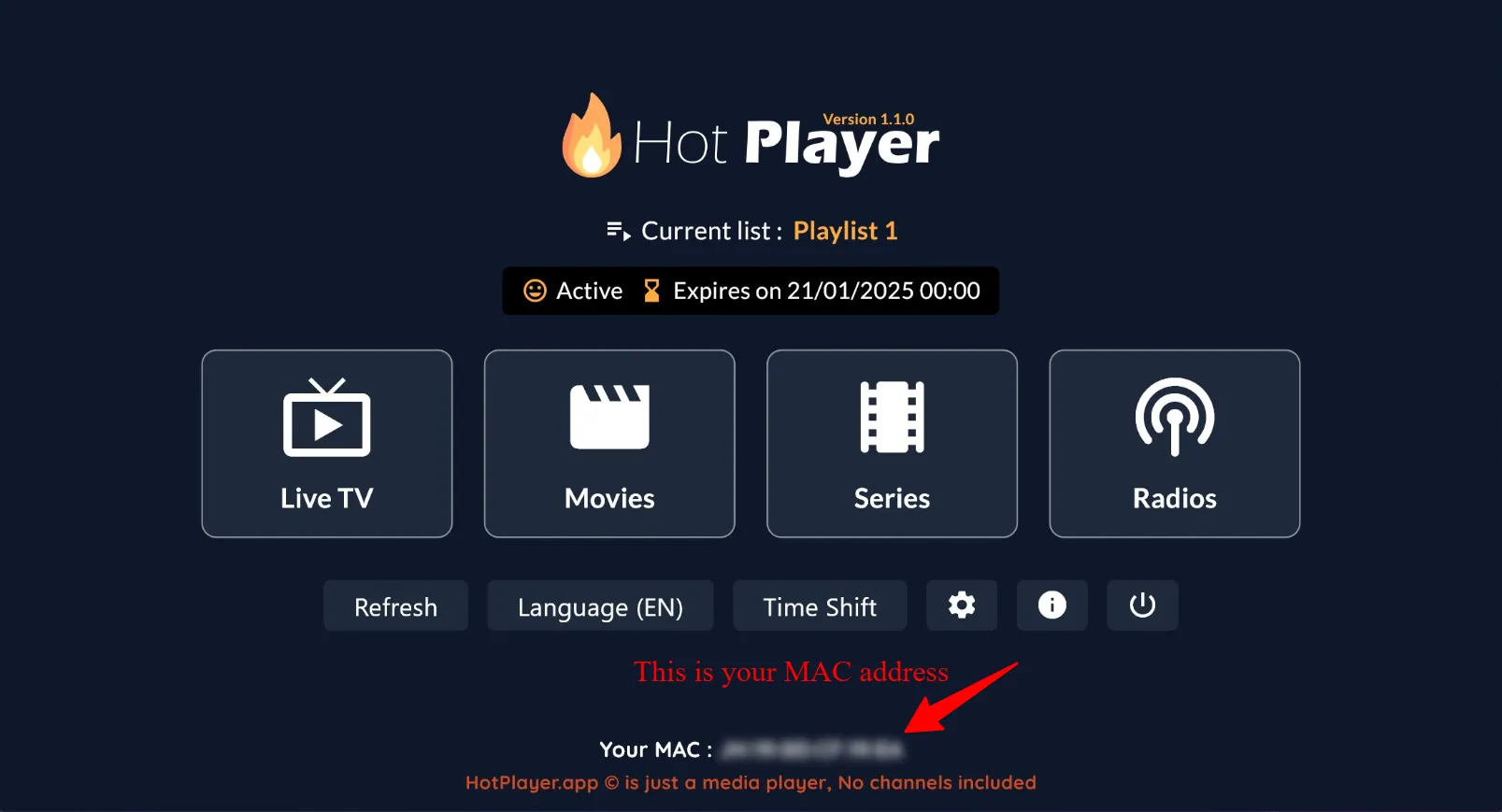
Open the player and note the requested login format
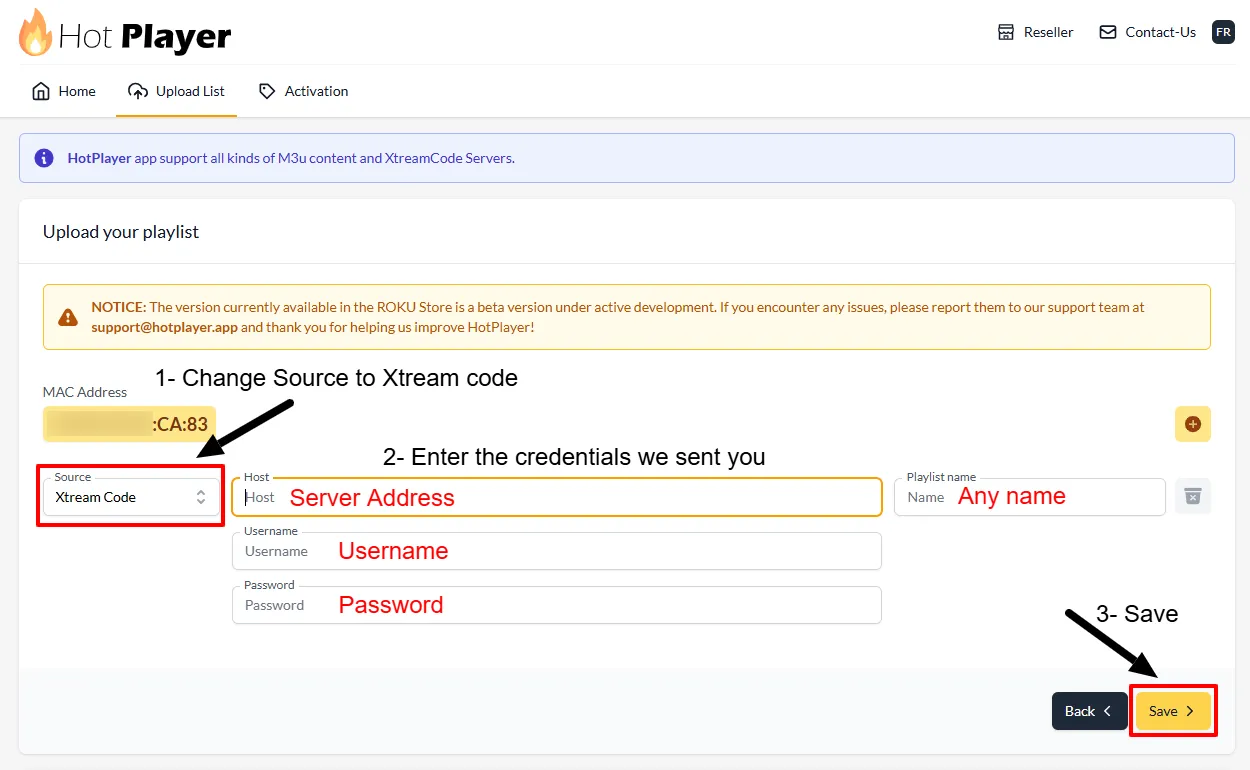
Choose M3U, Xtream Codes or the supported device-link workflow that matches the details supplied.
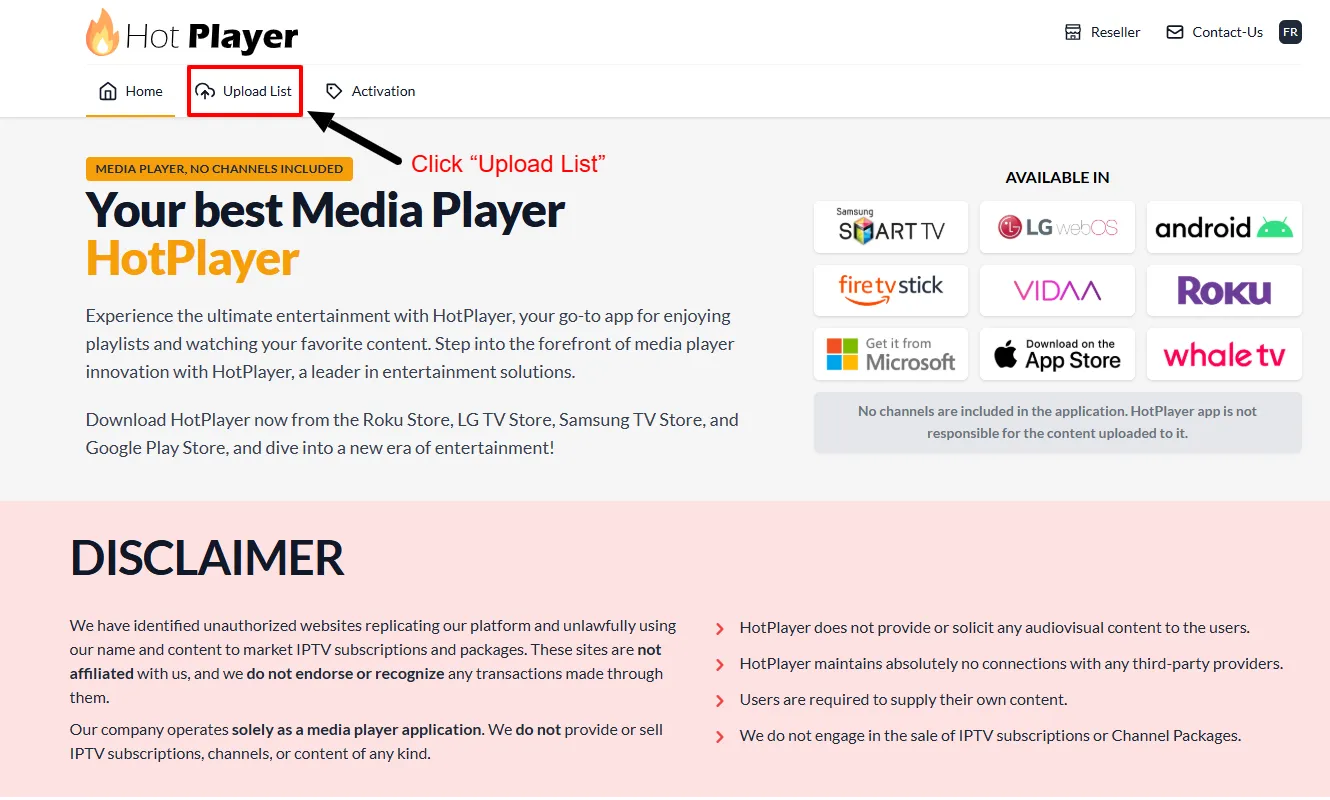
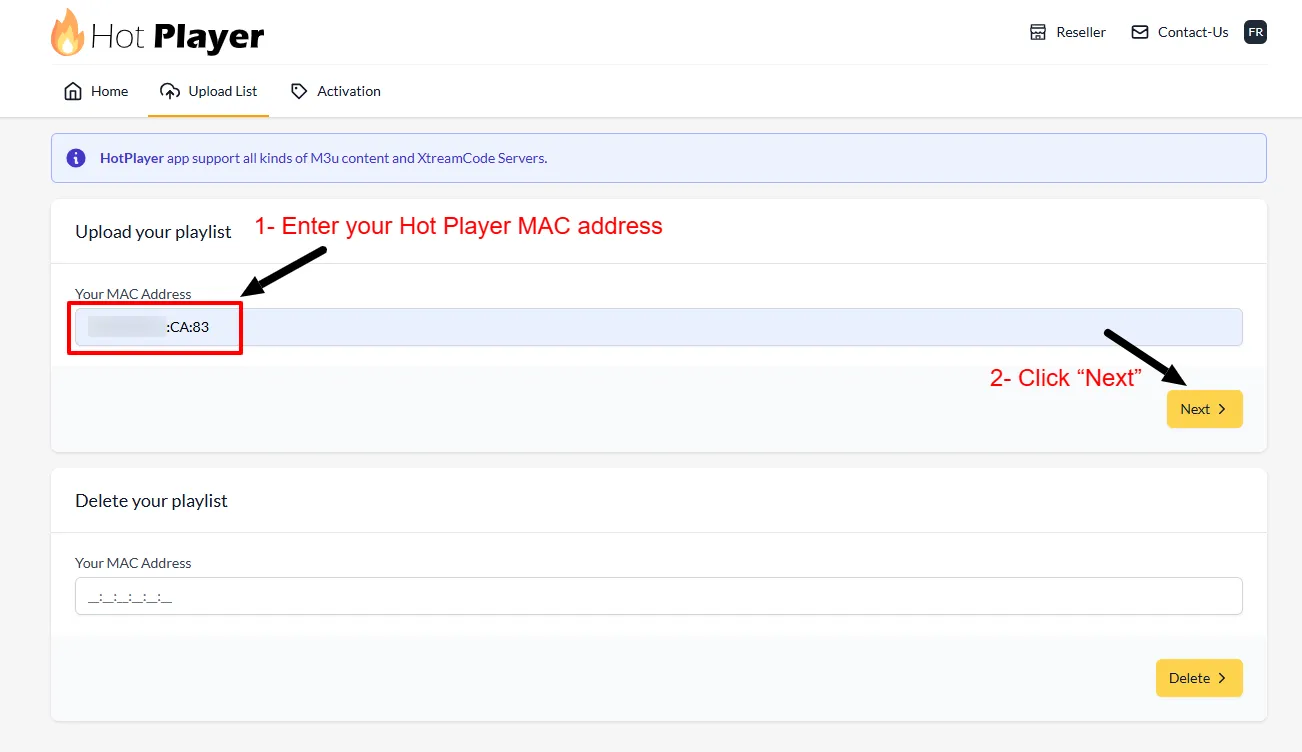
Enter or upload the IPTV details
Copy the server, username, password or playlist URL exactly and keep those details private.
Reload the player
Allow the playlist and EPG to finish their first sync before closing the app.
Test playback and casting
Try several sources on Wi-Fi and test casting separately if the television will be the main screen.
Common problems and the first useful check
Use the visible symptom to choose the next test. Avoid clearing all data, reinstalling repeatedly or resetting the television before a simple comparison identifies the affected layer.
| Problem | Check first | Then |
|---|---|---|
| The playlist remains empty | Repeat the matching setup or playback check | Change one device, app or network variable and retest |
| The app rejects the login | Repeat the matching setup or playback check | Change one device, app or network variable and retest |
| Casting connects but playback fails | Repeat the matching setup or playback check | Change one device, app or network variable and retest |
| Mobile data use is unexpectedly high | Repeat the matching setup or playback check | Change one device, app or network variable and retest |
How to verify the result
Open several channels or titles rather than relying on one example. Confirm channel switching, picture and audio, guide times and a longer playback period on the normal home connection.
Repeat the important test during the hours you usually watch. A result from the real device and schedule is more useful than a demonstration on someone else's screen.
Frequently asked questions
What should I check first for IPTV on Android phone?
Confirm the exact device or app, the login format and whether the problem affects one source or the complete setup.
Should I clear app data or factory-reset the device?
Not as a first step. Restart normally, verify the login and compare the player or connection before erasing saved settings.
Can I test the setup before choosing a plan?
Yes. Prepare the device first, then use the free 24-hour test to check playback, EPG and normal viewing conditions.